



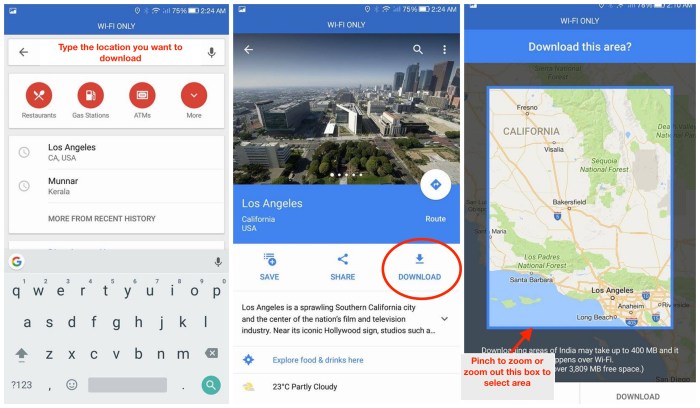
How use google maps offline – How to use Google Maps offline? This guide dives deep into the world of portable navigation, equipping you with the knowledge to explore the world without a data connection. Imagine navigating a new city, planning a hiking trip, or getting around during a travel blackout—all without worrying about expensive roaming charges or spotty internet. We’ll explore the benefits, download methods, and practical applications of using Google Maps offline.
From downloading specific areas to managing your map storage, this comprehensive guide breaks down the process into manageable steps. Discover how to leverage offline maps for efficient navigation, even when you’re far from reliable Wi-Fi. We’ll cover everything from selecting the right download options to understanding the limitations of offline maps compared to their online counterparts.
Introduction to Offline Google Maps
Google Maps, a ubiquitous navigation tool, is more than just a digital road map. It leverages a global network of servers to provide real-time traffic updates, turn-by-turn directions, and detailed street views. However, its functionality extends beyond online connectivity, allowing users to download map data for offline use. This empowers users with reliable navigation in areas with limited or no internet access.Offline Google Maps works by downloading a portion of the map data to your device’s storage.
This allows you to access basic navigation features, including directions, search, and route planning, even when you’re not connected to the internet. The downloaded data includes maps, points of interest, and other relevant information. This downloaded data is a snapshot of the map data at the time of download, so it will not include real-time traffic updates.
Benefits of Offline Maps
Offline maps provide significant advantages in various situations. They ensure continuous navigation in areas with spotty or non-existent internet connectivity, such as remote regions, areas with poor cell service, or during emergency situations.
Common Offline Usage Scenarios
Offline maps are indispensable in several everyday situations. They are extremely helpful for tourists exploring unfamiliar cities without relying on a constant internet connection. Business travelers can use them to navigate unfamiliar locations when Wi-Fi access is limited. Furthermore, road trips or hiking excursions benefit greatly from the offline capability.
Available Offline Map Types
Google Maps offers a variety of map types for offline use, ensuring versatility in different scenarios. These map types provide varying levels of detail and information. The default map type, suitable for general navigation, offers a balance of clarity and comprehensiveness.
- Standard Map: This is the most common map type. It provides a balance of street details, points of interest, and terrain features, making it suitable for most navigation needs.
- Satellite Map: This map type displays satellite imagery, which can be particularly useful for identifying landmarks, terrain features, and locating specific addresses, especially in areas with dense vegetation or complex layouts.
- Terrain Map: This map type highlights terrain features, such as elevation changes, mountains, and valleys. This information is especially helpful for outdoor activities like hiking or biking.
- Hybrid Map: This combines elements of the standard and satellite map types, providing a visual representation of the area that is both clear and informative.
Downloading Maps
Offline Google Maps is incredibly useful for navigating areas without internet access. Knowing how to effectively download maps for your trips is key to maximizing its benefits. Proper planning ensures you’re prepared for any situation, from exploring a new city to navigating unfamiliar routes.Downloading the right areas of a map for offline use requires careful consideration of your needs and the available storage space on your device.
This involves understanding the various download options, the size implications, and how to choose the best fit for your trip.
Selecting an Area for Download
Downloading the correct map area is crucial for offline use. Google Maps allows users to download specific regions, enabling navigation without relying on an active internet connection. Selecting the right area ensures that you have the necessary map data for your planned activities.To download a specific area, you first need to open the Google Maps app. Then, locate the area you intend to visit and zoom in to the desired level of detail.
The available download area will typically be highlighted with a specific color. Once you have selected your area, click the download button, usually indicated by a cloud-like icon. A prompt will appear, confirming the selected region and allowing you to review the download size before proceeding.
Factors Influencing Download Size
The size of the downloaded map depends on several factors. The most significant factor is the area’s size and complexity. Larger areas with more detailed features, such as buildings, roads, and points of interest, will naturally result in larger download sizes. The level of detail you choose when zooming in will also influence the size of the map.
A larger zoom level will result in a higher resolution map, and consequently, a larger download.
Download Options
Different download options cater to various needs. Choosing the appropriate option can save storage space and ensure you download only the necessary data.
| Download Option | Description | Size Impact | Use Cases |
|---|---|---|---|
| Individual Area | Specific geographic region | Small | Walking/short trips, exploring a small neighborhood. |
| Entire City | Entire urban area | Large | Exploring a city on foot or by car, covering multiple districts. |
| Specific Routes | Predefined driving/walking routes | Variable, typically smaller than entire city downloads | Navigation, commutes, exploring a specific path or trail. |
Storage Space Considerations
Sufficient storage space is essential for downloading maps. If your device’s storage is limited, downloading only the necessary areas will help you avoid storage issues. Before downloading extensive maps, ensure you have enough free space available on your device. Checking the remaining storage capacity before downloading large areas or cities is a crucial step to prevent unexpected download interruptions.
Consider using cloud storage options or transferring files to external drives to free up space if needed.
Using Offline Maps
Offline Google Maps is a lifesaver when you’re venturing into areas with spotty or no internet connection. It allows you to pre-download maps for specific regions, enabling navigation and searching without relying on cellular data or Wi-Fi. This is invaluable for travelers, commuters, or anyone needing map access in remote locations.Offline maps offer a significant advantage over relying solely on online maps, especially when you’re in an area with limited or no internet access.
Downloading the necessary maps ensures you have a resource available for navigation, search, and directions, keeping you on track without constant data connection.
Navigating with Offline Maps
Offline maps work similarly to online maps, but with limitations due to the lack of real-time data. To use offline maps for navigation, ensure you’ve downloaded the map area you need. Open Google Maps, and the downloaded map will appear in the app. Tap the navigation icon to initiate directions, selecting your starting and destination points. Google Maps will provide turn-by-turn directions, but these will not update for traffic conditions, as real-time traffic data isn’t available offline.
Searching Offline Maps
Searching within offline maps is possible, but with a reduced scope compared to online searches. You can search for specific locations, points of interest (POIs), or addresses. The search functionality is limited to the data downloaded. If you’re looking for something outside the downloaded map area, the search won’t yield any results. Search results may also be less comprehensive compared to online searches.
Figuring out how to use Google Maps offline is a lifesaver, especially when you’re out and about. It’s super handy for navigating unfamiliar areas or when you’re in a dead zone. Speaking of handy, did you know that some top artists like Elton John, Pharrell, and Drake are featured on Apple Music’s Beats 1? This article dives into the details of those appearances.
Regardless, downloading maps beforehand is a simple way to keep your navigation going, even when your phone has no signal.
Utilizing Offline Maps for Directions
To utilize offline maps for directions, you’ll first need to ensure the required map area is downloaded. Once downloaded, open the Google Maps app and tap the navigation icon. Enter your starting and destination points. Google Maps will provide turn-by-turn directions. Crucially, remember that offline directions do not incorporate real-time traffic information, which can affect the route displayed and the expected travel time.
Comparing Online and Offline Map Functionalities
| Feature | Online Maps | Offline Maps |
|---|---|---|
| Real-time traffic | Yes | No |
| Live updates | Yes | No |
| Public transport information | Yes | No |
| Search | Yes | Limited |
This table clearly Artikels the key differences between online and offline map functionalities. Online maps offer dynamic updates, while offline maps provide a static representation of the downloaded area.
Finding Points of Interest (POIs) Offline
Finding Points of Interest (POIs) offline is possible within the downloaded map area. You can search for specific POIs by name, type, or category. The search results will be limited to the downloaded data, so you won’t find POIs outside the area covered by the offline map. For example, searching for a restaurant in a downloaded city will yield results, but searching for a restaurant in a city not included in the downloaded map will not.
Offline Map Maintenance: How Use Google Maps Offline
Keeping your downloaded Google Maps offline data current and organized is crucial for seamless navigation, especially in areas with limited or no internet access. This section details how to maintain your offline maps effectively, ensuring you have the most up-to-date information available. Proper management prevents wasted storage space and guarantees a smooth experience.Maintaining offline maps involves a few key steps.
Regular updates ensure accuracy, while efficient deletion of unused maps frees up valuable storage space on your device. Understanding these practices will guarantee you have the best possible offline navigation experience.
Updating Downloaded Maps
Regular updates of your offline maps are essential to maintain accuracy and avoid outdated information. Google Maps automatically checks for updates in the background when possible, but manual checks are also recommended for ensuring the most recent data.
- Check for Updates: Navigate to the Google Maps app and select the offline area you wish to update. A notification or indication will typically appear if an update is available. Tap the update option to initiate the process.
- Download Size Considerations: Be aware that updating an offline map may increase its file size. This depends on the size of the area and the changes made by Google Maps.
- Potential Downtime: Updating offline maps might require some time. During this period, the offline map might not be available for use. Plan accordingly to avoid unexpected interruptions.
Deleting Unused Maps
Managing your offline map storage is key to maintaining a smooth experience and maximizing your device’s storage. Deleting unused maps is a simple but effective way to reclaim space.
Want to explore a place without relying on a data connection? Downloading Google Maps offline is a lifesaver, especially when you’re considering the current state of Lake Mead, which has hit record lows, as shown in NASA satellite images of the Hoover Dam reservoir. This recent news highlights the importance of planning ahead and downloading relevant areas for offline access.
Then, you can navigate with confidence even in remote areas.
- Identify Unused Maps: Review the list of downloaded offline maps within the Google Maps app. Look for maps that you no longer need or use. Consider areas you haven’t visited in a while.
- Select Maps for Deletion: Within the offline maps section of the app, select the maps you wish to remove. A confirmation step typically follows to ensure you understand the action.
- Confirm Deletion: Once you’ve selected the maps, confirm the deletion process. This action cannot be undone, so double-check your selection before confirming.
Managing Offline Map Storage
Effective management of offline map storage is crucial to avoid filling up your device’s storage and ensuring a smooth user experience.
- Regular Review: Periodically review your downloaded offline maps to identify areas that are no longer needed. This prevents unnecessary storage consumption.
- Storage Space Awareness: Be mindful of the available storage space on your device. Downloading large offline maps might lead to insufficient space for other applications or data.
- Alternative Storage Options: If you are frequently downloading large maps, consider alternative storage solutions, such as using a microSD card or a cloud service, to improve your offline map management.
Common Problems and Solutions, How use google maps offline
Troubleshooting offline maps can resolve issues quickly.
| Problem | Solution |
|---|---|
| Maps not updating | Check for internet connectivity, ensure the app has sufficient storage, and try restarting the device. |
| Maps not loading | Ensure the downloaded map is within the current geographic region. Verify the internet connection and try restarting the app. |
| Insufficient storage space | Delete unused offline maps or use alternative storage options. |
Alternatives and Considerations
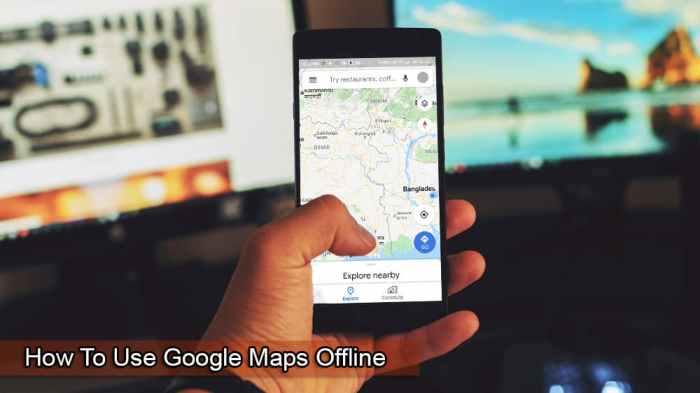
Navigating the world without relying on a constant internet connection is becoming increasingly important. While Google Maps is a powerful tool, exploring alternatives and understanding the nuances of different map formats and their limitations is crucial for optimal offline navigation. This section will delve into the competitive landscape of offline map applications, the various map formats, device and platform compatibility, and the practical considerations of data usage and download speeds.
Alternative Offline Map Applications
A variety of offline map applications are available, each with its own strengths and weaknesses. Exploring these alternatives provides users with options beyond Google Maps, potentially catering to specific needs or preferences. These applications may offer different features, map styles, or levels of detail, allowing users to tailor their experience.
- Many dedicated navigation apps, like those from TomTom or Sygic, are popular choices for offline navigation. These apps often provide detailed route planning and real-time traffic information, even when offline. They typically offer a wider range of features beyond basic mapping.
- OpenStreetMap is a free and open-source map project. It’s a valuable alternative for users seeking a completely free, community-driven mapping experience. The data is constantly updated, but the level of detail may vary compared to commercial applications.
- Several mobile operating systems offer built-in offline map capabilities. For example, Apple Maps and other similar options may store map data directly on the device, offering a more integrated solution. However, these options often have less comprehensive coverage compared to dedicated applications.
Map Formats and Their Pros/Cons
Different map formats influence the size, detail, and performance of offline maps. Understanding these formats is crucial for selecting the right map for specific needs.
- Vector maps use points, lines, and polygons to represent geographic features. These maps are generally smaller in size and more efficient for display on various devices. They can also be easily updated without drastically increasing the file size. However, they may not show intricate details compared to raster maps.
- Raster maps use images to represent geographic features. These maps offer higher resolution and detail, potentially more accurate visual representation of terrain and landmarks. However, they are often significantly larger in size, consuming more storage space and potentially impacting download times.
Offline Map Availability Across Devices and Platforms
The availability of offline maps depends heavily on the device and operating system. Compatibility varies across different platforms and mobile operating systems.
Downloading Google Maps offline is a lifesaver for navigating without data. Want to explore new places without worrying about your cellular connection? Then using the offline maps feature is a must. It’s super useful for trips, especially when you know you won’t have a reliable internet connection. Speaking of cool tech, have you seen the iOS 17 preview standby live transcription stickers keyboard ?
It’s a game-changer, though it doesn’t directly relate to offline map use, but it’s a cool new development. Getting back to the topic, remember to download areas of Google Maps ahead of time to have those handy maps readily available.
| Platform | Offline Map Support | Notes |
|---|---|---|
| Android | Generally excellent support through various apps and OS features. | Wide range of options for download and use. |
| iOS | Good support, with Apple Maps offering built-in offline capabilities. | Integration with other apps may vary. |
| Windows | Support varies depending on the application. | May require specific applications for comprehensive offline mapping. |
Impact of Data Usage and Download Speeds
Data usage and download speeds directly affect the offline mapping experience. It is important to be mindful of these factors when deciding on map coverage and download strategies.
- Download speeds vary significantly based on internet connectivity. Users in areas with limited or slow internet connections may experience prolonged download times for large map areas.
- Data usage is a significant consideration, especially for large downloads. Users should be aware of their data plans and consider downloading only the necessary areas.
- Consider the trade-off between map detail and download size. Users may need to prioritize essential features over high-resolution details to minimize data usage and download time.
Advanced Usage
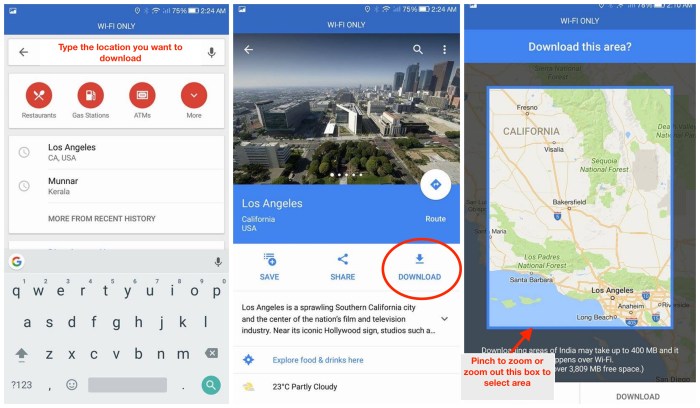
Offline Google Maps offers more than just static maps; it empowers you with a wealth of advanced features for navigating the world without an internet connection. This goes beyond simply displaying the terrain; it allows for planned trips, varied transportation options, and integration with other navigation tools. Let’s delve into these powerful capabilities.
Offline Navigation with Multiple Stops
Planning complex trips becomes effortless with offline navigation. Google Maps allows you to define multiple stops, optimizing routes and travel times. This is particularly useful for multi-city trips, deliveries, or visiting multiple locations within a region. You can input your starting point, a series of waypoints, and your destination, and the app will generate an optimized route, all without needing an active internet connection.
This is especially helpful for drivers or those using public transport, allowing them to plan routes with specific stops and avoid unexpected delays or extra costs.
Utilizing Offline Maps with Different Modes of Transport
Google Maps supports various modes of transport, enabling you to plan routes for walking, driving, cycling, or even public transit, all offline. The offline map data accounts for specific route types and provides real-time estimates for each mode. For instance, a cyclist can use the offline map to find the most scenic route through a park or avoid busy streets, ensuring an enjoyable experience.
Similarly, public transit users can plan routes based on real-time information stored on the map, such as bus schedules or train times.
Utilizing Offline Maps with a GPS Device or Offline Navigation App
The offline map data can be accessed and used with GPS-enabled devices or offline navigation apps. This enables you to rely on a comprehensive map even when cellular service or Wi-Fi is unavailable. Integration with GPS allows for real-time tracking and navigation, guiding you through the streets with precise directions. Furthermore, many third-party apps are designed to leverage the offline map data from Google Maps, offering additional features and customization options, such as enhanced turn-by-turn directions.
Customizing Map Settings for Offline Use
You can customize the map settings for offline use to suit your needs. Adjusting the map’s zoom level, enabling or disabling layers like traffic or public transport, and customizing display settings like route options and details can improve your experience. For instance, adjusting the zoom level ensures that you can see all the details needed for your current location, or you can disable traffic to save data and focus on the most efficient route.
These customizations can be tailored to each trip and individual preferences, allowing for a personalized offline navigation experience.
Final Thoughts
In conclusion, using Google Maps offline empowers you with a powerful navigation tool for diverse situations. This guide provides a clear roadmap to download, utilize, and maintain your offline maps effectively. Whether you’re a seasoned traveler or a curious explorer, understanding how to leverage Google Maps offline can significantly enhance your adventures. Armed with this knowledge, you’ll be prepared for any journey, anywhere in the world, even without an internet connection.